
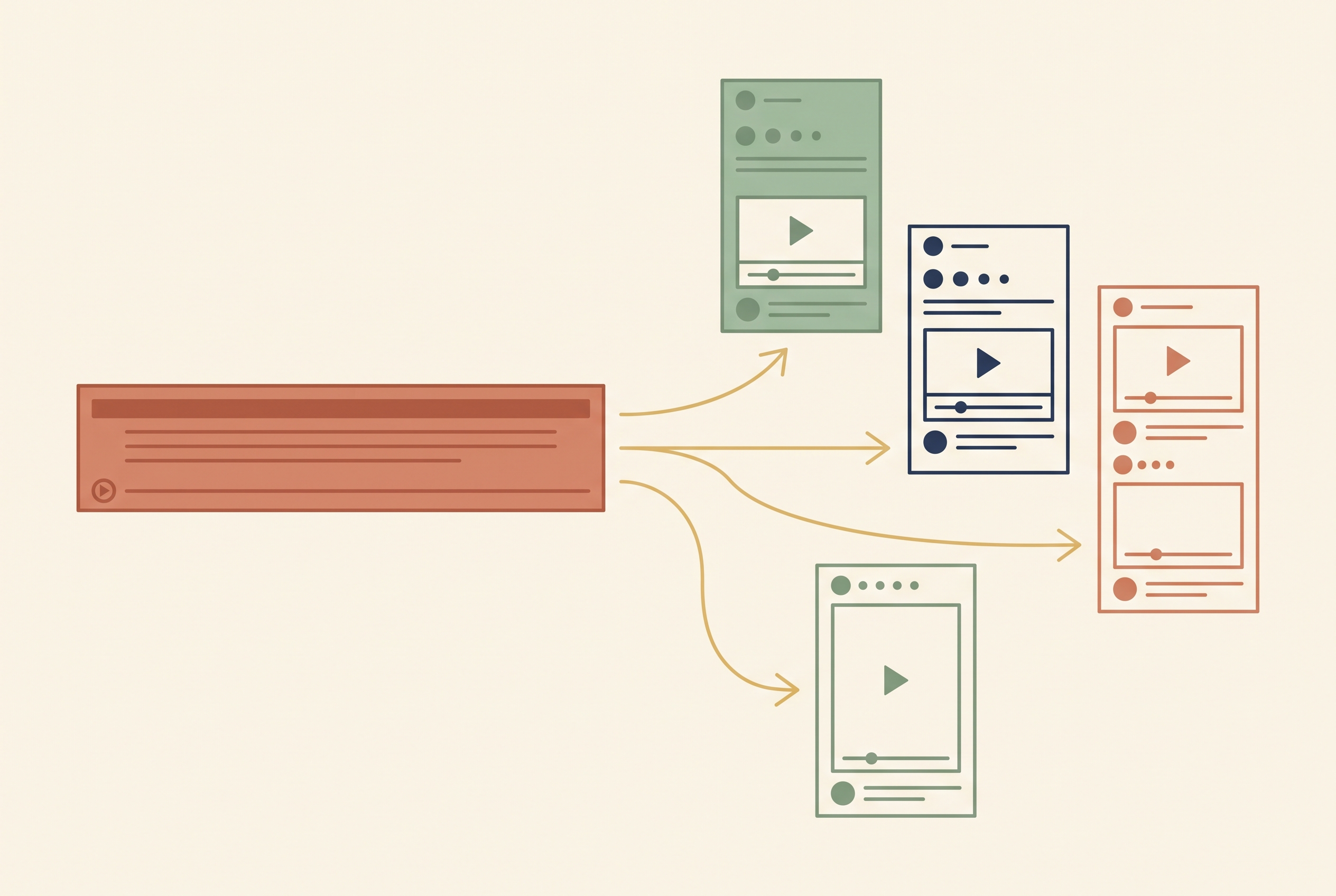
Opus Clip is the tool most people reach for when they have one long video and need ten short ones. The pricing looks simple — three tiers, two of them cheap — but the number on the button is not what decides which tier you need. Two limits buried further down the page do.
I publish short-form daily across four accounts, so I have run repurposing tools hard enough to find where they pinch. Here is what Opus Clip costs as of August 2026, and which of those costs actually matter.
The tiers, as they stand
Three published plans plus a custom one:
- Free — $0/month. Local files and YouTube imports only. Clips render up to 1080p, captions carry a watermark, and exports expire after three days.
- Starter — $15/month. Watermark-free export, the full import list (Google Drive, Vimeo, Zoom, Rumble, StreamYard), highest available resolution, and a 30-day storage window.
- Pro — $29/month. Everything in Starter plus faster processing — you move ahead of the free queue.
- Business — custom. Team seats and negotiated terms.
All tiers accept local video up to 10GB per file, so raw file size is not the thing that pushes you up a plan.

The three-day clock is the real free-tier limit
The watermark is the limit everyone notices. The storage expiry is the one that actually costs you work.
On Free, your rendered clips expire after three days. That sounds generous until you match it against how anyone actually works: you process a batch on Sunday, schedule it across the following two weeks, and by Wednesday the files you were going to post on Friday are gone. Not degraded — gone. You re-run the whole job, and if the source video has moved or the tool has changed its model in the meantime, you do not get identical clips back.
Starter's 30-day window is the fix, and it is most of what you are paying the $15 for. The practical workaround on Free is simple and I would do it regardless of tier: download every clip the day it renders, to your own disk, named properly. Treat any tool's library as a cache, never as storage.

The watermark is on the captions, not the corner
This trips people up. The free tier does not stamp a logo in the corner of the frame — it watermarks the captions. Since the captions are the entire reason to use a clipping tool, and since they sit dead centre of the vertical frame where the eye goes, this is more intrusive than a corner mark, not less.
You cannot crop it out and you cannot cover it without covering the words. So if the output is going anywhere public — client work, a monetised account, a brand page — the free tier is a prototyping tool, not a production one. If you are learning the workflow or testing whether your long-form even has clippable moments in it, free is genuinely fine.
When Pro's speed is worth $14 more
Pro buys faster processing. Whether that is worth the difference depends entirely on whether you batch.
If you process one video a week, you will not notice. Start the job, do something else, come back. If you process a week's content in one sitting — which is how most consistent posting schedules actually run — queue time compounds. Ten videos behind a slow queue is an afternoon; ten videos ahead of it is an hour.
My rule for any tool priced this way: pay for speed only once you have measured yourself waiting on it. Not before. It is the easiest upsell in software to buy on imagination and the easiest to justify once you have actually sat there.

Where a clipper stops and a generator starts
Worth being clear about, because the two get shopped against each other and they solve different problems.
Opus Clip needs a source video. It finds the moments, reframes to vertical, tracks the speaker and burns captions. What it cannot do is make footage that does not exist. If you have an hour of podcast, it is the right tool. If you have a script and no camera, it is the wrong one — that is a generation problem, and the economics there are per-second render cost rather than per-month seats. The comparable numbers are in Seedance pricing and Higgsfield pricing.
Plenty of people need both and do not realise it: generate the b-roll, then clip the talking head. If you are optimising the output end rather than the input end, the platform-specific guides are more use — YouTube Shorts, TikTok and Instagram Reels.
The short answer
Free is a trial with a three-day memory and a watermark across your captions — use it to find out whether your long-form has clips in it at all. Starter at $15 is the real entry point, and the 30-day storage window is most of what you are buying. Pro at $29 is a speed purchase; make it after you have measured yourself waiting, not before. Whatever tier you land on, download every clip the day it renders.
Prices in this category move, and they move faster than any article updates. That is what the community is for — current tiers, what got cut, and the workflows people are actually running this month. Join the AI Video Generator community on Skool.
Looking for something else? Browse all 72 AI video guides in one list.
Pictory is the one in this category that bills on two meters at once - video minutes and AI credits - and quoting only the dollar figure is how people end up stranded mid-month with plenty of one and none of the other. The tier arithmetic also has a genuine oddity in it: Team costs MORE per minute than Professional, and annual Professional carries double the credits of its own monthly equivalent. Both meters worked through in the Pictory pricing breakdown.
If the answer is that you want a different tool rather than a cheaper plan, the Descript alternatives roundup covers the editors that replace this part of the workflow.
If you would rather skip the tooling decision entirely, we make finished clips to order — see Custom AI Generated Video.
Share:
Free Unlimited AI Video Generation: What's Actually Unlimited
HeyGen Pricing in 2026: What 600 Credits Actually Buys